Home > Features > DJ / DAW Tools
DJ / DAW Tools
Two-deck DJ mixer and multi-track DAW editor.
Table of Contents
- Overview
- DJ Deck
- Instantaneous Playback Architecture
- AI Cue Detection
- Stem Loop Decks
- Crossfader and Curve Modes
- Transport and Sync
- Chef AI Set Builder
- Virtual Controller
- Chromatic Pads
- DAW Editor
- LiveComponent Architecture
- JS Hooks
- MIDI/OSC Control
- Export
Overview
SFA includes two professional audio tools built into the dashboard:
- DJ Deck — A two-deck mixer for live mixing with BPM sync, loop controls, EQ, and cue points.
- DAW Editor — A multi-track editor for per-stem mute/solo, volume control, and MIDI export.
Both are accessed via tabs on the main dashboard at / (using ?tab=dj and ?tab=daw). Legacy routes /dj and /daw/:track_id redirect to the appropriate dashboard tabs.
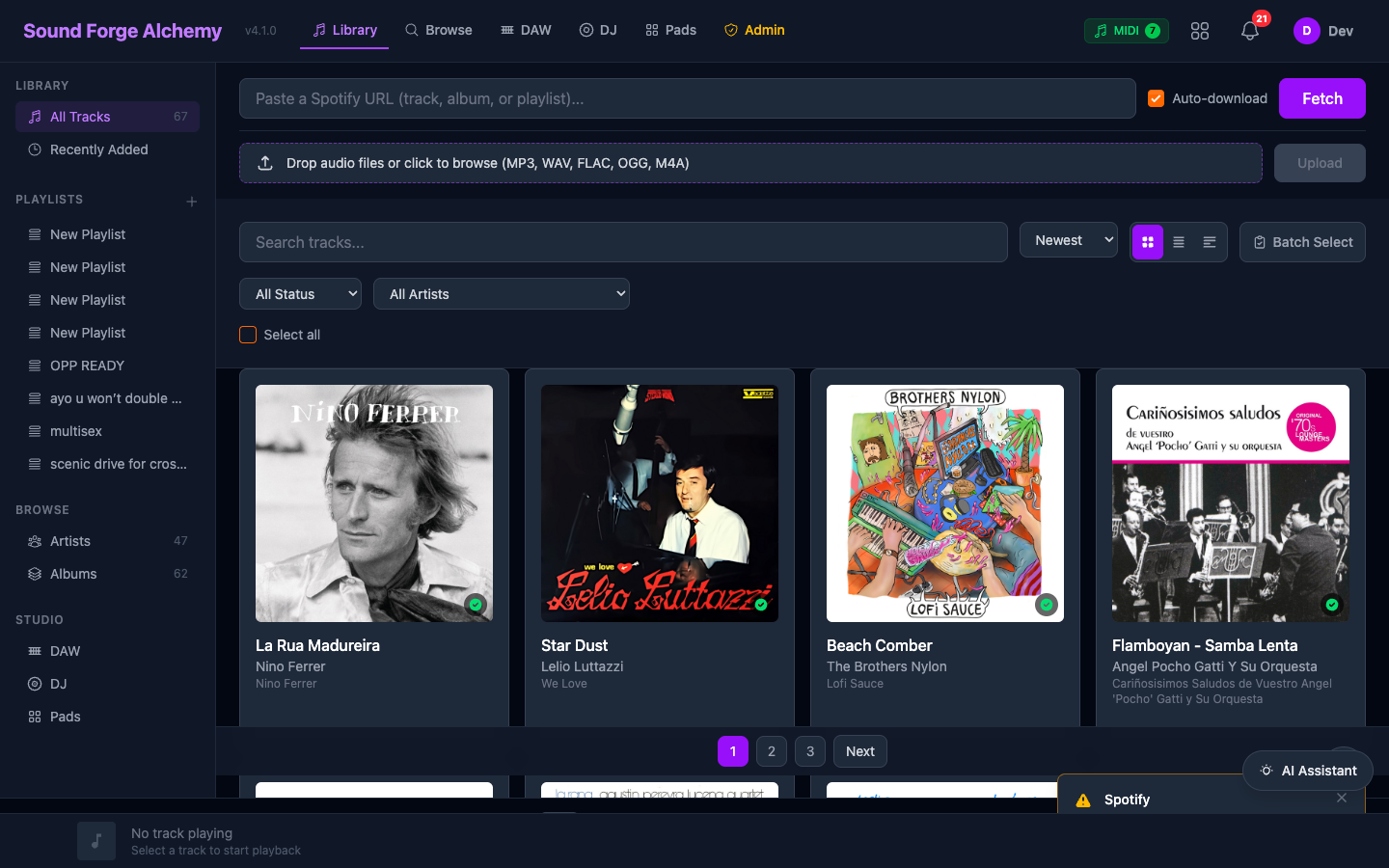 The main dashboard at
 /. The DAW, DJ, and Pads tabs in the top navigation open the respective tools. The left sidebar’s Studio section (DAW, DJ, Pads) provides the same navigation. Both tools are LiveComponents embedded in DashboardLive and share its track library without a separate data fetch.
DJ Deck
LiveComponent: SoundForgeWeb.DjLive
JS Hook: DjDeck
Features
- Two decks (A and B) — Each loads a downloaded track with full playback controls
- Instantaneous playback —
JS.dispatchtriggers play events directly from the client, eliminating delayed start (see Instantaneous Playback Architecture) - BPM sync — Pitch-shift one deck to match the other’s tempo
- Loop controls — Set loop start/end points; toggle active loop
- Stem loop decks — Load individual stems into dedicated loop deck slots with independent loop points (see Stem Loop Decks)
- EQ (3-band) — High, mid, low frequency adjusters per deck
- Crossfader — Blend between decks with selectable curves: linear, constant power, sharp cut (see Crossfader and Curve Modes)
- AI cue points — ML-powered drop, breakdown, and build-up detection in addition to manual cue markers (see AI Cue Detection)
- Waveform display — Scrolling waveform with playhead and beat grid
- SMPTE transport — LTC timecode output for external DAW sync (see Transport and Sync)
- Virtual controller — On-screen jog wheels, pitch faders, and transport buttons (see Virtual Controller)
- Chef AI — AI-assisted track selection, harmonic mixing, and energy flow planning (see Chef AI Set Builder)
- Preset import/export — Save and load controller mappings and deck configurations as named presets
Keyboard Shortcuts
| Key | Action |
|---|---|
Space |
Play/pause active deck |
1 / 2 |
Switch active deck |
Q |
Set cue on active deck |
W |
Jump to cue on active deck |
A / S |
Adjust crossfader left/right |
Deck Session Persistence
Active deck sessions are stored in SoundForge.DJ.DeckSession (ETS-backed). Sessions persist for the browser session duration.
Instantaneous Playback Architecture
DJ playback uses a JS.dispatch + JS.push dual-path architecture for sub-frame response times. User interactions (play, pause, cue trigger) execute immediately in the browser via JS.dispatch while simultaneously pushing events to the server via JS.push. This eliminates the WebSocket round-trip from the critical playback path.
JS.dispatch + JS.push Pattern
# In the HEEx template — both fire on the same click
<button
  phx-click={
    JS.dispatch("dj:play", to: "#deck-a")
    |> JS.push("toggle_play", value: %{deck: "a"})
  }
>
  Play
</button>
Why two paths?
JS.dispatch("dj:play")fires a DOM CustomEvent caught by the DjDeck hook immediately. The Web Audio API starts playback on the same animation frame – no network latency.JS.push("toggle_play")sends the event to the server so the LiveView can update its state, persist the deck session, and broadcast to other connected clients.
The server-side handler updates assigns but does not re-push playback commands back to the originating client. This avoids double-triggering.
Dual-Deck Simultaneous Playback
Both decks run independent Web Audio API AudioContext graphs. Each deck maintains its own:
AudioBufferSourceNode(loaded track)GainNodechain (volume, EQ bands)BiquadFilterNodetrio (high/mid/low EQ)- Playback position tracker (requestAnimationFrame loop)
Crossfader blending is applied at the gain stage, not by re-routing audio nodes. This allows both decks to play simultaneously with zero glitching during transitions.
Bug Fixes (v4.5.x)
- ArgumentError in toggle_play/set_hot_cue/trigger_cue: Fixed
to_stringtype coercion – deck identifiers were arriving as atoms in some code paths but strings in others. Normalized to string at the handler boundary. - 30Hz WebSocket flood: The
debug_loghandler was firing on every LiveView event, flooding the WebSocket at ~30Hz during playback. Added a guard clause (if @debug_panel_open) so debug messages are only pushed when the debug panel is visible. - BPM throttle:
handle_event("update_bpm")now rate-limits to one server update per 5 seconds. Intermediate BPM slider values are applied locally via JS.dispatch without round-tripping.
AI Cue Detection
The DJ system includes an AI-powered cue detection engine that analyzes track structure and automatically places cue points at musically significant positions.
Capabilities
- 26+ cues per track – covers intros, drops, breakdowns, chorus entries, bridges, outros, and beat-grid-aligned transition points
- Cue detection runs as an Oban job (
AutoCueWorker) triggered after analysis completes - Results stored in
cue_pointstable withposition_ms,label,color, andsource(:autovs:manual) - Auto-cues integrate with the chromatic pads – each pad can be assigned an auto-detected cue
Usage
Auto-cues appear as colored markers on the deck waveform. Users can promote, rename, delete, or re-color any auto-cue. Manual cues set by the user always take priority over auto-detected ones at the same position.
Stem Loop Decks
Each DJ deck can load individual stems (vocals, drums, bass, other) into dedicated sub-decks called stem loop decks. This enables per-stem loop control during a live mix.
- Each stem loop deck has independent loop start/end points and toggle
- Stems are sourced from a completed separation job for the loaded track
- Stem volumes can be adjusted independently while the main deck plays
- Useful for isolating a vocal loop over a different track’s instrumental
Crossfader and Curve Modes
The crossfader supports multiple blend curves to match different mixing styles:
| Curve | Behavior |
|---|---|
| Linear | Equal-power linear blend (default) |
| Constant Power | Logarithmic curve, no volume dip at center |
| Sharp Cut | Near-instant cut at the midpoint – scratch/battle style |
| Slow Fade | Extended center range for long transitions |
Curve selection is per-session and stored in the deck session ETS entry.
Transport and Sync
SMPTE / Bar-Beat Display
The transport bar shows both SMPTE timecode (HH:MM:SS:FF) and musical position (Bar.Beat.Tick) derived from the track’s detected BPM and time signature. The bar-beat display updates at 60fps via requestAnimationFrame.
Master Sync
When master sync is enabled, Deck B pitch-locks to Deck A’s tempo. BPM adjustments on Deck A propagate to Deck B in real time. The sync engine uses phase-aligned stretching (Web Audio API playbackRate) rather than re-pitching, preserving the original key.
Metronome
A built-in click track synchronized to the master BPM. Routed to a separate AudioContext destination (headphone cue) when supported by the audio hardware.
Chef AI Set Builder
Chef is an AI-powered set builder that sequences tracks based on harmonic compatibility, energy arc, and genre coherence. It analyzes the user’s library and suggests a playlist order optimized for DJ transitions.
- Uses analysis data (BPM, key, energy, valence) to compute transition scores
- Supports manual re-ordering with live score recalculation
- Export as ordered playlist or direct-load into DJ decks
Virtual Controller
A software MIDI controller rendered in the browser for users without physical hardware. Provides:
- Play/pause/cue buttons per deck
- Crossfader slider
- EQ knobs (hi/mid/lo)
- Volume faders
- Loop in/out controls
The virtual controller dispatches the same events as physical MIDI-mapped controllers, using the same JS.dispatch path.
Chromatic Pads
A grid of trigger pads (styled after MPC/Maschine layouts) that fire cue points and one-shot samples. Pads auto-populate from AI cue detection results and can be manually reassigned.
- Each pad stores a
cue_point_idor a sample file reference - Velocity-sensitive when triggered via MIDI (velocity mapped to gain)
- Visual feedback: pads light up on trigger with color matching the assigned cue
Preset Import
Pad layouts and controller mappings can be imported/exported as JSON preset files. Built-in presets ship for common controllers (Pioneer DDJ, Traktor Kontrol, Akai MPC).
DAW Editor
LiveComponent: SoundForgeWeb.DawLive
JS Hook: DawEditor, DawPreview
Features
- Multi-track view — One lane per stem (vocals, drums, bass, other/guitar/piano)
- Per-stem controls:
- Mute toggle
- Solo mode
- Volume fader (0–200%)
- Pan knob (-100 to +100)
- Timeline — Zoom in/out, scrub position
- Edit operations — Cut, copy, trim, fade in/out (stored as
SoundForge.DAW.EditOperationrecords) - Preview — Real-time stem mixing in the browser via Web Audio API
- MIDI export — Export beat grid and cue points as MIDI file
Edit Operations
Edit operations are stored as a log in PostgreSQL, enabling undo/redo:
# EditOperation schema
%EditOperation{
  track_id: uuid,
  operation: "cut" | "fade_in" | "fade_out" | "trim" | "volume",
  params: %{start_ms: 1000, end_ms: 5000, value: 0.8},
  applied_at: datetime
}
DAW Export API
POST /api/daw/export
Content-Type: multipart/form-data
Authorization: session cookie

{stem files + edit manifest}
-> Returns processed audio file
LiveComponent Architecture
Both DJ and DAW are Phoenix.LiveComponent embedded in DashboardLive. They are not standalone LiveViews.
DashboardLive (LiveView)
  |
  +-- DjLive (LiveComponent) [?tab=dj]
  |     |-- DjDeck JS Hook
  |
  +-- DawLive (LiveComponent) [?tab=daw]
        |-- DawEditor JS Hook
        |-- DawPreview JS Hook
PubSub messages from the server are forwarded from DashboardLive to the appropriate component via send_update/3.
Why LiveComponents (not LiveViews)
- DashboardLive holds the track stream (the source of truth for the library)
- DJ and DAW need read access to that library without a separate data fetch
- LiveComponents can call
send_updateto receive targeted updates from the parent
JS Hooks
DjDeck Hook
// assets/js/hooks/dj_deck.js
const DjDeck = {
  mounted() {
    // Initialize Web Audio API nodes (deck A and B)
    // Handle phx events: load_track, play, pause, set_bpm, set_loop
    this.handleEvent("deck_update", ({deck, state}) => {
      // Update waveform display, playhead, cue markers
    })
  }
}
DawEditor Hook
// assets/js/hooks/daw_editor.js
const DawEditor = {
  mounted() {
    // Initialize timeline canvas
    // Handle stem mute/solo/volume events
    this.handleEvent("stem_update", ({stems}) => {
      // Re-render track lanes
    })
  }
}
DawPreview Hook
Handles real-time stem mixing using Web Audio API GainNode and ChannelMergerNode:
const DawPreview = {
  mounted() {
    this.ctx = new AudioContext()
    this.stemNodes = {}  // One AudioBufferSourceNode per stem

    this.handleEvent("load_stems", ({stems}) => {
      // Fetch + decode each stem file
      // Route through individual GainNodes
    })

    this.handleEvent("update_volume", ({stem_type, volume}) => {
      this.stemNodes[stem_type].gainNode.gain.value = volume
    })
  }
}
MIDI/OSC Control
Module: SoundForge.MIDI (midiex)
Module: SoundForge.OSC
Both DJ decks and DAW controls can be mapped to MIDI hardware controllers. See the dedicated MIDI Integration page for full details on device management, learn mode, mapping storage, and bug fixes.
- MIDI Learn — Click a control and press a MIDI button/knob to assign
- Preset mappings — Built-in mappings for popular controllers (Pioneer DDJ-200, Traktor Kontrol S2)
- Universal controller detection — Planned auto-detect and preset application for new devices
- OSC — Open Sound Control server for DAW integration (Ableton Link, TouchOSC)
MIDI mappings are stored in SoundForge.MIDI.Mappings and persisted per user in the database.
Export
| Export | Route | Format |
|---|---|---|
| Single stem | GET /export/stem/{id} |
WAV/MP3 |
| All stems (ZIP) | GET /export/stems/{track_id} |
ZIP |
| Analysis JSON | GET /export/analysis/{track_id} |
JSON |
| DAW export | POST /api/daw/export |
Processed WAV |
See Also
- Stem Separation
- Audio Analysis
- MIDI Integration
- Real-Time Patterns
- API: DAW Export
- WebSocket: Events
| ← Audio Analysis | Next: AI Agents → |